How to Create Realistic AI Porn Videos: Text & Photo to Video Guide
Getting Started with Sex Tape AI Studio
Log in to evokeai.co and navigate to the Sex Tape AI Studio from the main dashboard.
Choose whether you want to start from a text prompt or upload a photo as the base for your video.
Before generating, set the clip length to five seconds using the duration selector.
Confirm that the output mode is set to HD video to ensure the highest definition available.
Writing Effective Text Prompts for Video
Begin with a clear subject: describe the performer, clothing, and setting in one sentence.
Add action verbs that convey motion, such as "thrusting", "gliding", "bouncing", or "swaying".
Specify camera perspective (e.g., "close‑up", "over‑the‑shoulder", "wide angle") to guide the AI’s framing.
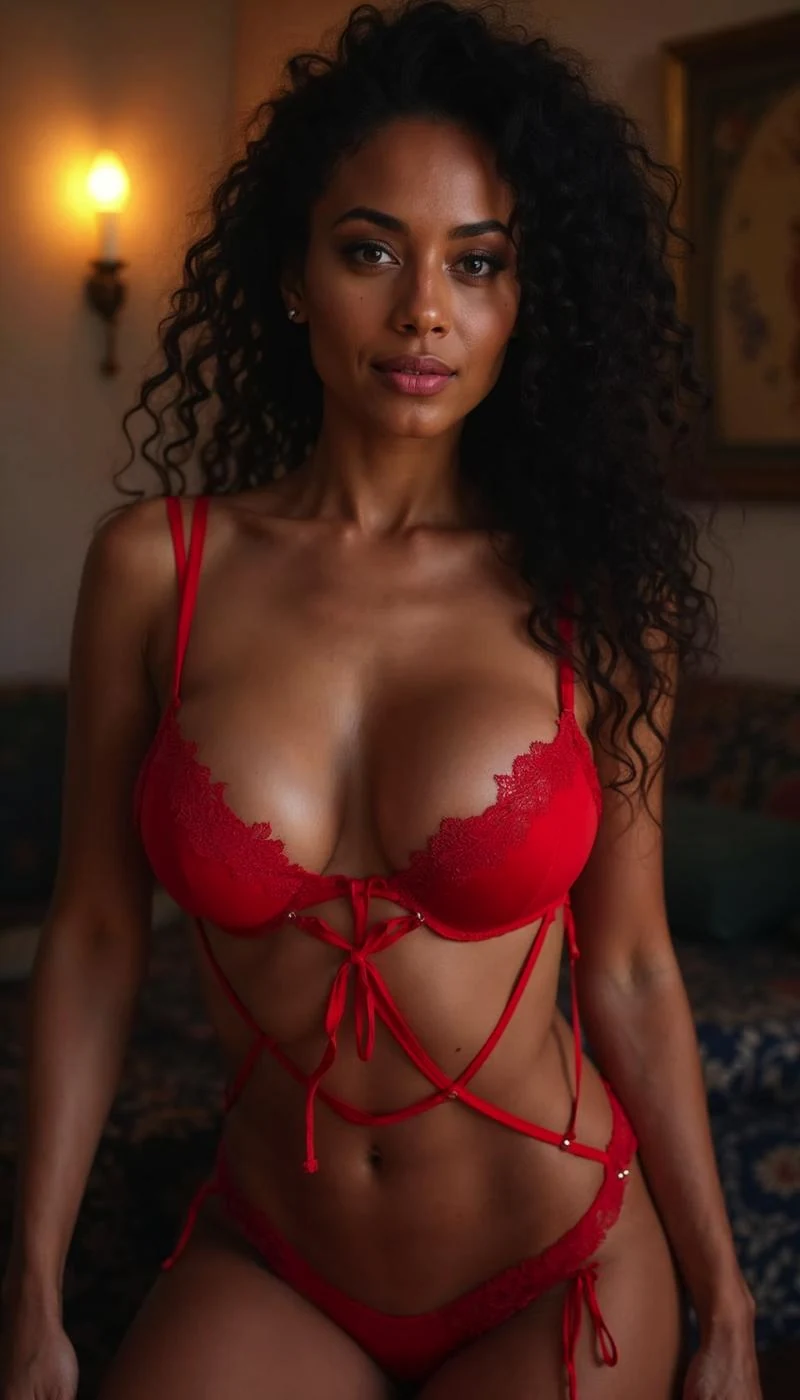
Example prompt: "A curvaceous woman in red lingerie slowly slides her hand down her thigh, hips rolling in a natural rhythm, captured in a close‑up shot with soft lighting."
Using Photos as Input for Video Generation
Upload a high‑quality photo that shows the pose you want to animate.
Use the NSFW Prompt Studio to expand the image into a short scene idea: describe what should happen next in the motion.
Refine the generated prompt by adding details about speed, direction, and any secondary movements like breath or fabric sway.
Run the generation and preview the five‑second clip; if the motion feels stiff, adjust the prompt to include more fluid descriptors.
Adjusting Length, Sound and Resolution Settings
Keep the duration fixed at five seconds for quick, shareable clips; longer clips can be made by concatenating multiple generations.
The studio outputs HD video; you can upscale later with external software if needed.
To add sound, export the video and layer your chosen audio track using any video editor—sync the audio to the action beats for realism.
Test the final clip with headphones to ensure the audio matches the visual intensity.
Prompt Tricks to Make Movement Look Real
Include temporal cues like "slow motion", "gradual acceleration", or "steady pulse" to guide the AI’s frame‑by‑frame motion.
Describe secondary motions: "breast bounce with each thrust", "hair fluttering as she moves", or "sheet wrinkles shifting".
Use adjectives that convey weight and texture: "heavy", "soft", "silky", "firm" to help the AI simulate realistic physics.
Example tweak: "Her hips roll forward at a steady pace, the lingerie fabric stretching and releasing with each movement, captured in slow motion."
Earning and Spending Free Coins and $EVOKE Discounts
Spin the daily wheel and complete site tasks to earn free Coins that can be applied toward video generations.
When you purchase credits, paying with $EVOKE gives you a 25 % discount on the credit cost.
You can also tip AI companions or other users in Lustlab Chat using Coins, fostering community interaction while you create.
Keep an eye on promotional events for additional Coin bonuses.
Final Tips and Responsible Creation
Review each generated clip to ensure all depicted actions are consensual and enthusiastic, in line with the site’s guidelines.
If a motion looks unnatural, iterate by tweaking the prompt—small changes in verb choice or timing often yield big improvements.
Save your favorite prompts in a personal library for quick reuse and to build a consistent style across your videos.
Enjoy the creative process, and remember that the AI companions are always labeled as artificial, keeping interactions transparent.