Image to Video AI Guide: Turning AI Pictures into Social Media & Fan Site Videos
Prepare Your AI Image for Image to Video AI
Start in Sex Tape AI Studio where you can upload any AI‑generated picture you made with Evoke AI’s core tools. The studio accepts PNG or JPG files and preserves the original detail, which is crucial when you later apply motion.
If you need a fresh base, use NSFW Prompt Studio to write a quick scene prompt, generate a new image, and then send that file straight into the video workflow. This keeps the workflow inside the adults‑only ecosystem and ensures every character is consenting and enthusiastic.
Selecting Image-to-Video Settings: Length, Resolution and Frame Rate
In the video tab, choose a resolution that matches your target platform. For Instagram Reels or TikTok, 1080×1920 vertical works fine; for YouTube or fan‑site galleries you can go up to 4K (3840×2160) to showcase every detail.
Set the clip length between 3 and 15 seconds—short enough to hold attention, long enough to show a subtle motion loop. A frame rate of 24 fps gives a cinematic feel, while 30 fps is smoother for fast actions like a bounce or a sway.
Crafting Motion Prompts that Keep the Face Stable
Open NSFW Prompt Studio and add a motion descriptor after your base idea. Phrases like “slow head turn, eyes locked on camera” or “gentle chest rise, face unchanged” guide the model to animate the body while preserving facial features.
Test the prompt with a low‑resolution preview first. If the face drifts, tighten the wording: add “face remains fixed, no blur, no distortion” and reduce the motion strength slider. This technique works especially well for ai picture to video projects where the portrait is the focal point.
Optimizing for Social Media and Fan Sites
Export the video in MP4 with H.264 codec; this balances quality and file size for quick uploads. Keep the bitrate around 8‑12 Mbps for 1080p and 20‑30 Mbps for 4K to avoid platform compression artifacts.
Share a teaser clip in Lustlab Chat to get instant reactions from real people or your AI companions (Hailey, Brooke, Mali, etc.). Their feedback can help you tweak the motion prompt before posting the final version on your fan site or Twitter.
Using $EVOKE Coins and Free Credits for Discounts
Paying with $EVOKE on Solana gives you a 25 % discount on video generation credits, making longer 4K renders more affordable. You can also tip fellow creators in Lustlab Chat using the same coin, fostering a community‑driven economy.
Earn free Coins daily via the wheel spin or by completing simple tasks like rating prompts or inviting friends. These free Coins stack with the $EVOKE discount, letting you experiment with image to video ai without spending extra.
Final Export and Publishing Tips
Before hitting upload, double‑check the video’s metadata: title, description, and tags should include the keywords people search for—such as “ai video from photo” and “nsfw image to video”—to improve discoverability.
Once published, monitor engagement and consider making a short behind‑the‑scenes clip showing the prompt tweaks; fans love seeing the creative process, and it encourages return visits to your profile.
 Margot, 38Lyon
 Erica, 35Milan
 BunnyBite, 24San Diego
 Kayla, 25Amsterdam
 Anya, 30Kyiv
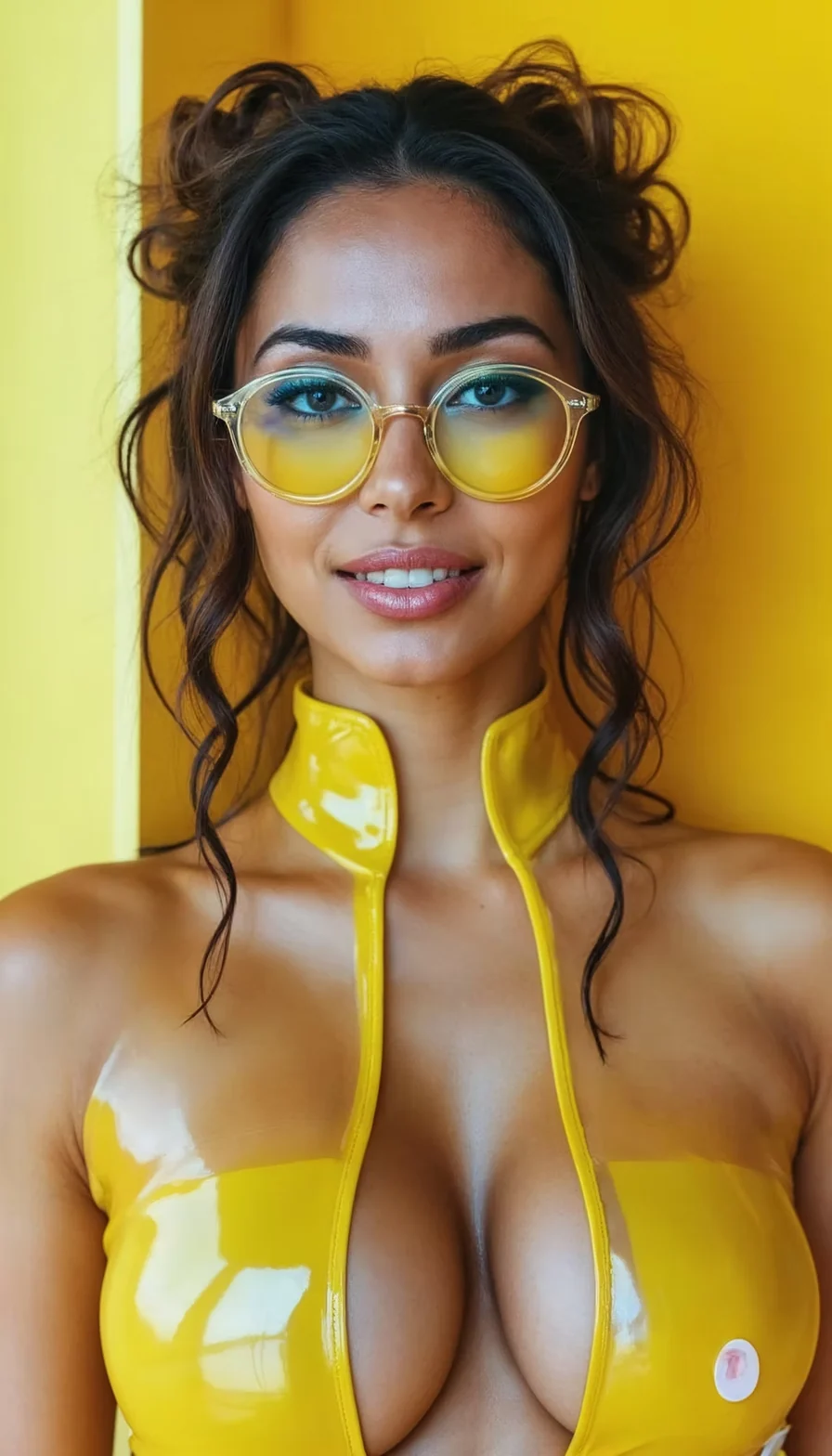 Sol, 27Medellín